Create and switch groups
A group holds related tabs and their settings. When you switch groups, you return to the tab you last viewed in that group.
Create a group
-
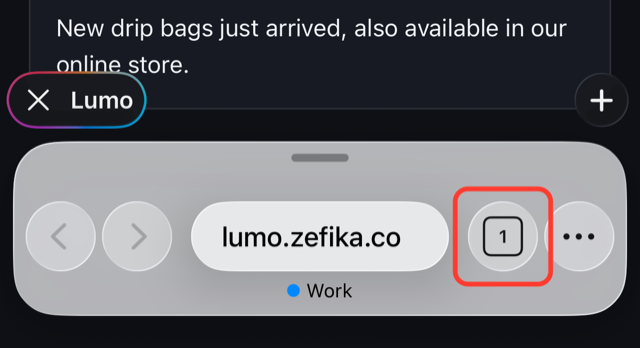
Touch and hold the tab count button at the bottom of the screen (the button showing the number of open tabs).
-
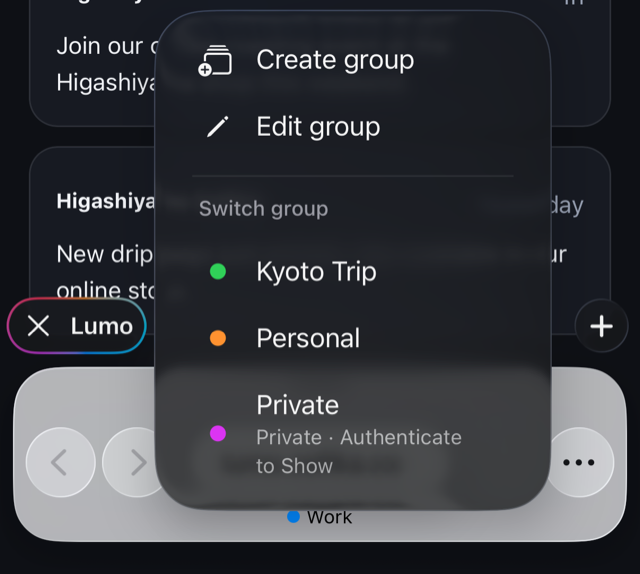
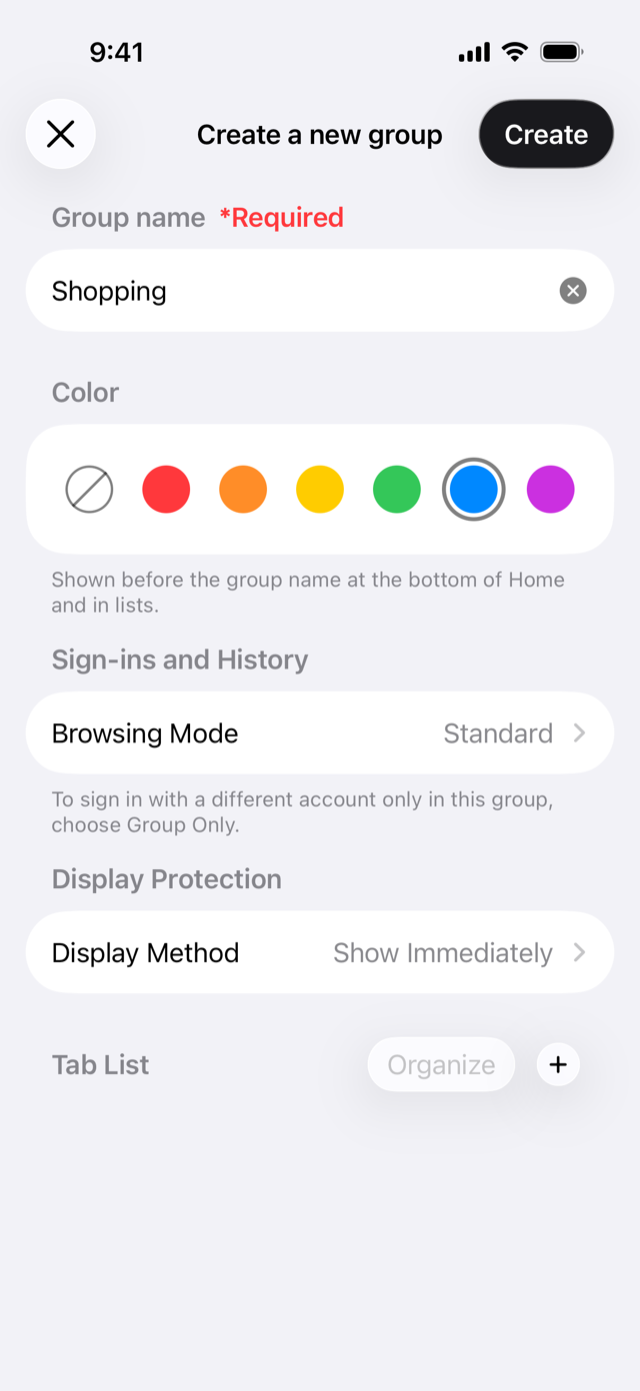
Choose Create group from the menu. The Create a new group screen opens.
-
Enter a name under Group name. Optionally pick a color. A colored dot then appears before the group name so you can tell groups apart at a glance.
-
Tap Create in the top right. The new group opens right away.
You can also create a group from + on the Groups side of the tab and group list.
Switch groups
- Touch and hold the tab count button and choose a group under Switch group. Groups are listed in the order you last opened them.
- Or tap the tab count button to open the tab and group list, then tap a group on the Groups side.
The group opens on the tab you last selected there.
Edit or delete a group
- Touch and hold the tab count button and choose Edit group.
- Change the name, color, the Browsing Mode under Sign-ins and History, the display method under Display, or the tab list, then tap Save.
- To delete, use Delete Group at the bottom of the same screen. After you confirm, the group and all of its tabs are removed.