Keep logins separate with Group Only
Each group has a Browsing Mode that decides how widely sign-ins and other site data are shared. To use the same service with a work account and a personal account, set one or both groups to Group Only.
The three browsing modes
| Mode | Sign-ins and site data shared with | After the app quits | Browsing and search history |
|---|---|---|---|
| Standard | Other Standard groups | Kept | Saved |
| Group Only | This group only | Kept | Saved |
| Private | This group only | Deleted | Not saved |
New groups start as Standard.
Set a group to Group Only
-
Touch and hold the tab count button at the bottom and choose Edit group (or Create group).
-
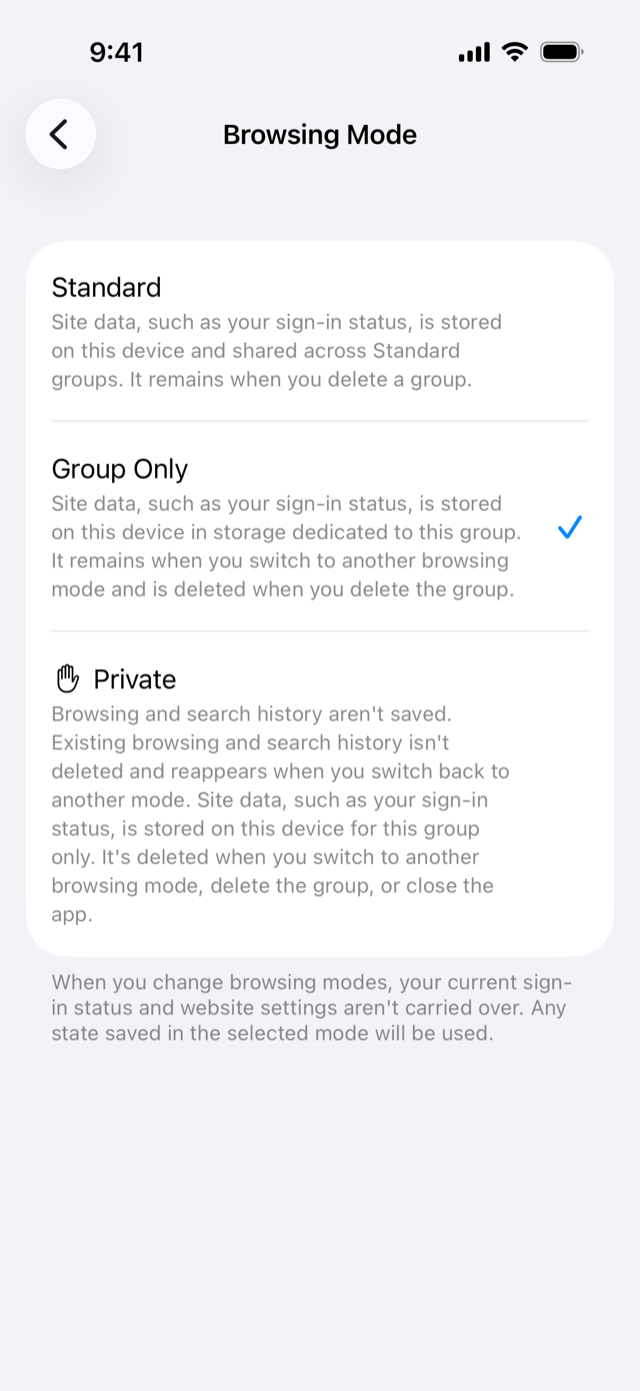
Under Sign-ins and History, tap Browsing Mode. The row shows the current mode on the right.
-
Choose Group Only. A check mark appears next to it. Go back and tap Save.
-
Open the site in that group and sign in with the account you want to use there.
The group now keeps its own sign-ins, separate from every other group.
Switch accounts by switching groups
- Create a work group and a personal group, and sign in to the same site with a different account in each.
- From then on, switching groups switches accounts.
- Give each group a color so you can tell at a glance which account you are using.
- To check the current page with your other account, touch and hold a tab or link and choose Open in Another Group.
Good to know
- Changing the browsing mode does not carry over your current sign-ins or site settings. The group uses whatever is stored for the mode you chose.
- Deleting a Group Only group also deletes its site data.
- To sign out and start over in one group, open the group’s menu on the Groups side of the tab and group list and choose Delete Site Data. Other groups stay signed in.