Getting started
Install
Install TabTasu from the App Store. No account is needed.
First launch
- A short introduction to TabTasu appears. Tap Continue.
- A note about ads and privacy appears. Review it and tap Continue to settings.
- Next, choose whether to allow tracking. Depending on your region, an ad consent form may appear first. TabTasu works the same either way. You can change your tracking choice later in iOS Settings.
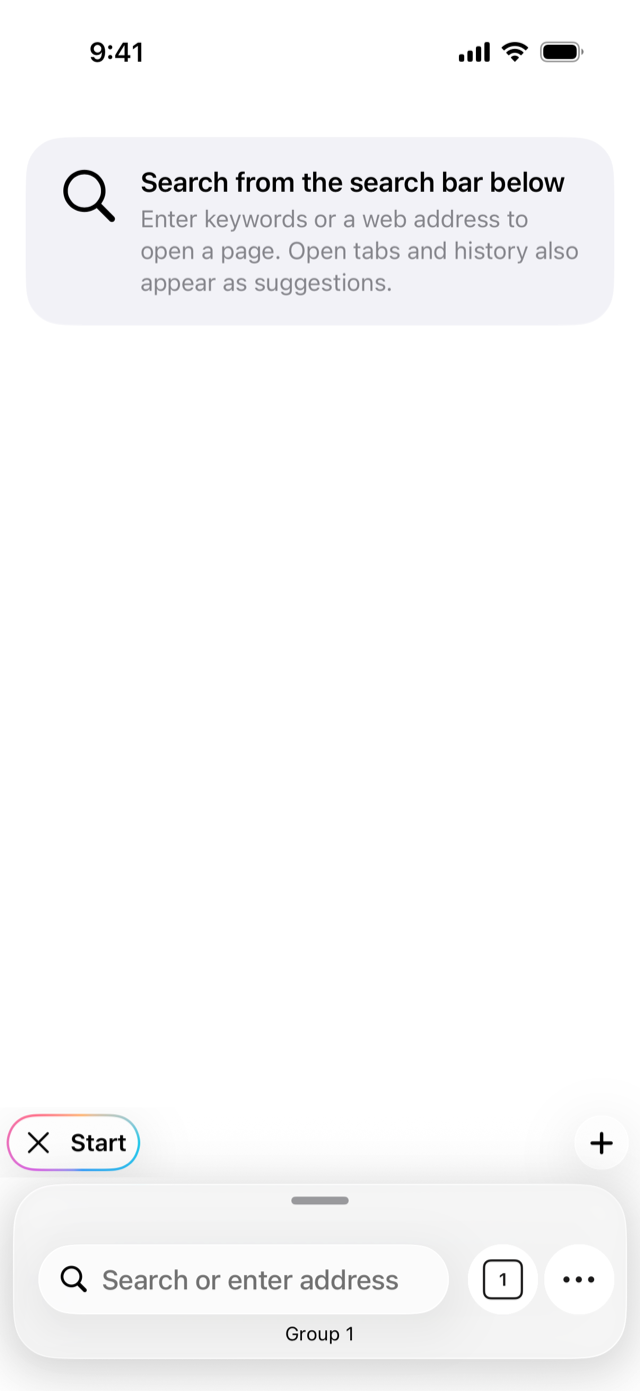
- The Home screen opens. The tab row, the search field, and the group name Group 1 are shown at the bottom. The first tab is the Start Page.
Open a page
- Tap the search field at the bottom.
- Type a search term or a URL and tap Go on the keyboard.
- The page opens in the current tab. To open another page, tap + in the tab row to add a tab.